
If you’re getting organic traffic but can’t answer the simplest question—“How many leads did SEO bring in?”—this guide is for you.
In 2026, GA4 is only useful when you track what your business actually cares about: form leads, call leads, and booking leads. The good news? You can set up a clean baseline with Google Tag Manager (GTM) without turning your website into a science project.
This post shows you exactly how to track SEO leads GA4, step by step, with an event naming standard that stays readable in reports (so you don’t end up with 40 confusing event names nobody trusts).
What counts as an “SEO lead” for local service businesses?
When most businesses say “lead,” they mean a real person raised their hand. For local service companies, that usually looks like:
- Form submission (contact, quote, request a callback)
- Click-to-call on mobile (tap the phone number / call button)
- Booking click (Calendly, Acuity, Square, “Book Now”)
- Email click (optional, depends on your niche)
Everything else—scroll depth, time on page, pages per session—can be helpful context, but it’s not a lead.
Before you start: the simplest setup that works
You’ll need:
- A GA4 property + Web data stream (you’ll copy a Measurement ID that starts with G-)
- A GTM container installed on your site
- Access to publish GTM changes
Quick heads-up: if your site uses a cookie consent banner, some GA4 “it’s not working” problems are actually consent problems. Keep that in mind if your reports look empty.
Step 1) Set up GA4 (property + Web stream)
If GA4 isn’t set up yet, do this first:
- Create your GA4 property
- Add a Web data stream
- Copy your Measurement ID (starts with G-)
That Measurement ID is the unique identifier for your GA4 property, and it’s the code you’ll paste into Google Tag Manager so GTM knows exactly which Analytics account should receive your website data.
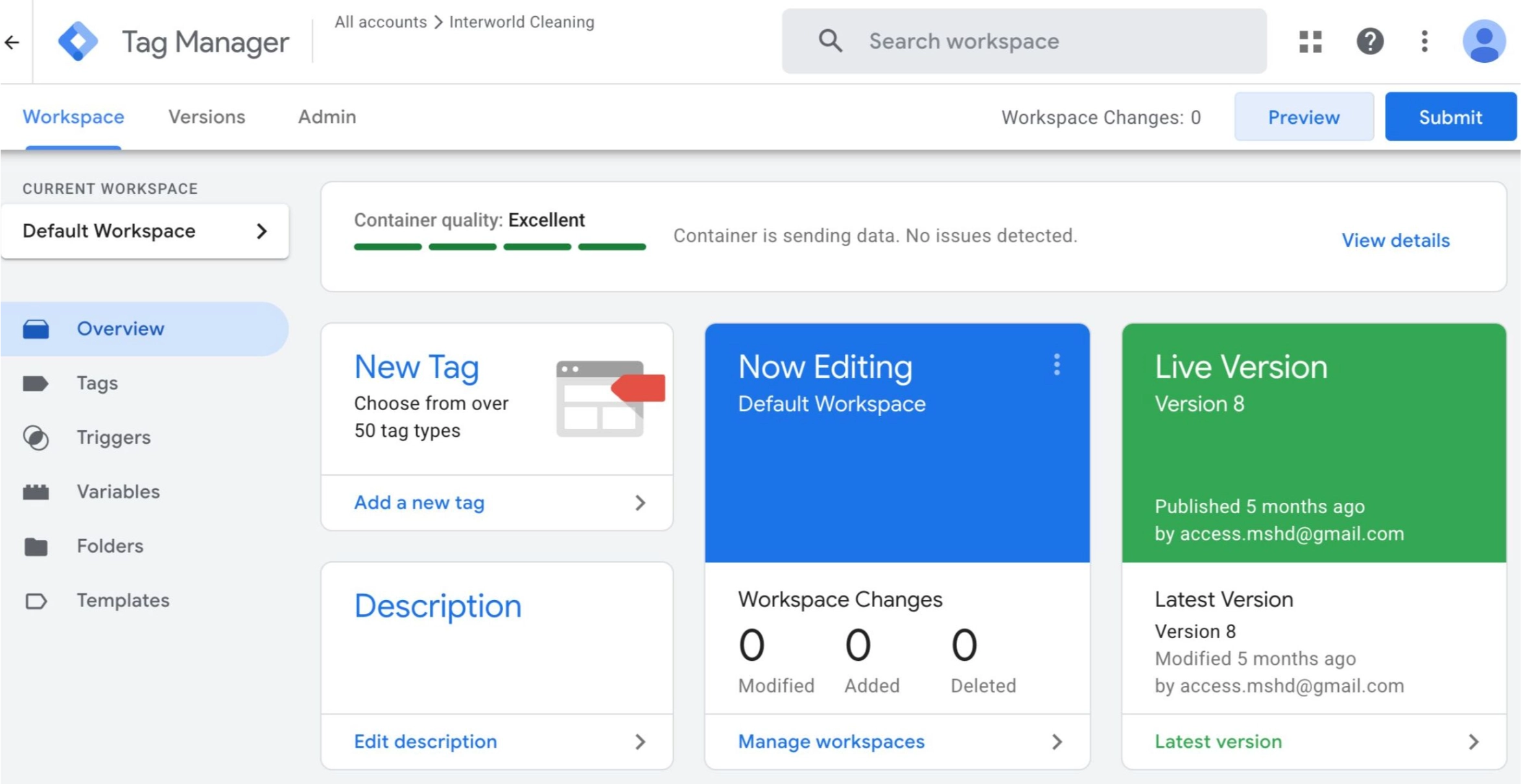
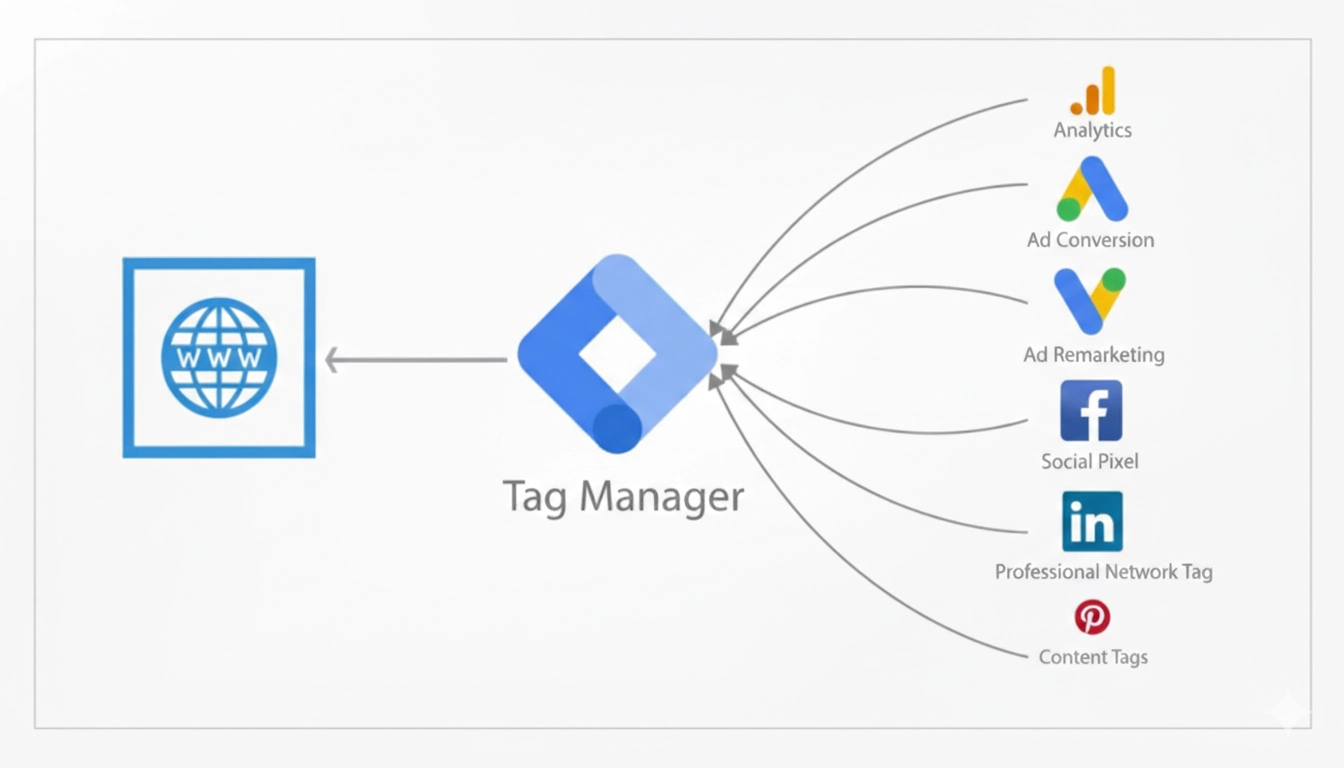
Step 2) Add GA4 through Google Tag Manager
In GTM, you’ll create the base tag.
- GTM → Tags → New
- Choose tag type: Google tag
- Paste your G-XXXX Measurement ID
- Trigger: Initialization (cleaner loading for most setups)
- Save
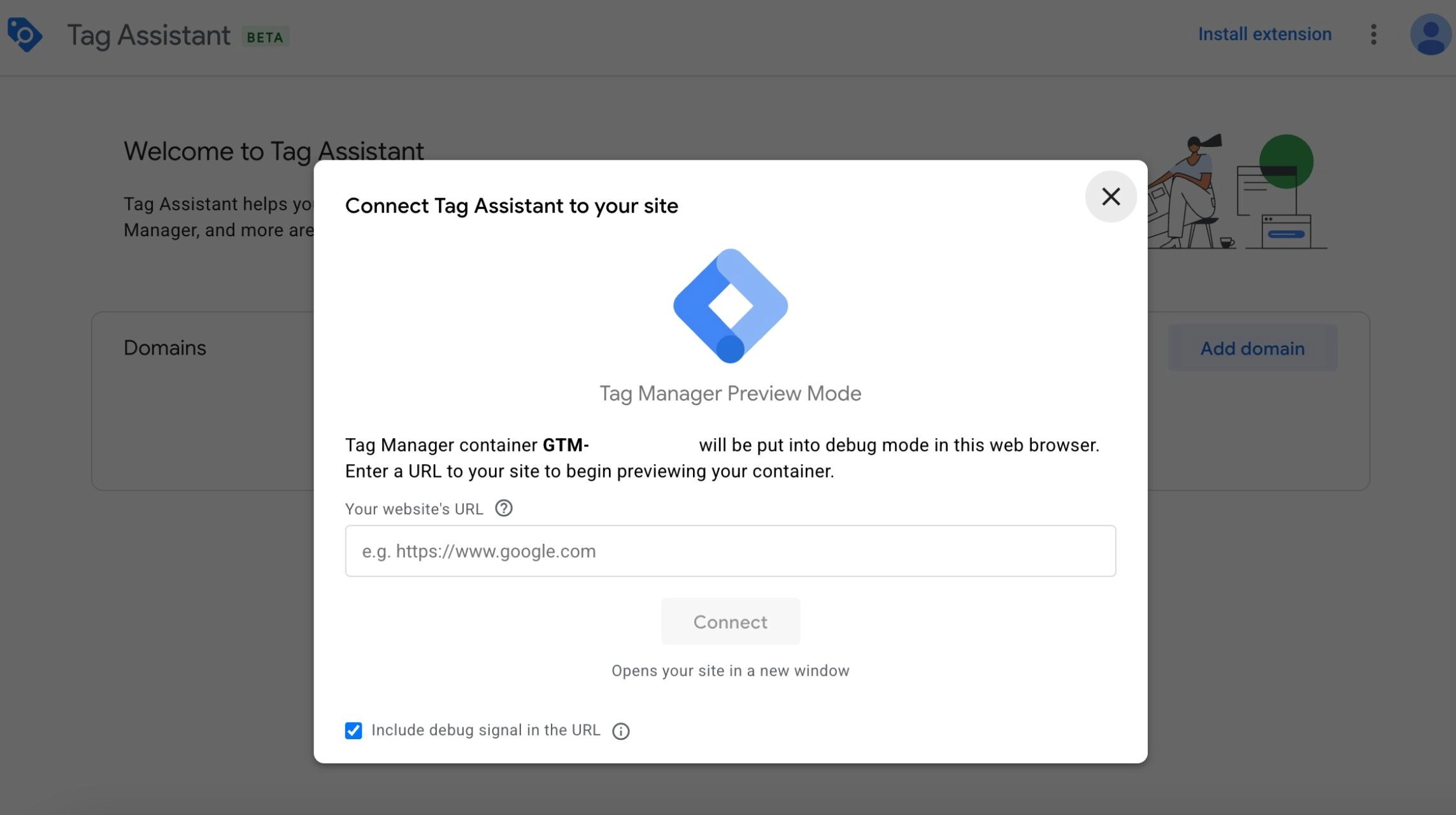
Now test it in GTM Preview Mode (Tag Assistant) before you publish.
Step 3) Confirm GA4 is receiving basic data (page_view)
Do a fast sanity check:
- Open GA4 → Realtime
- Browse your site in a fresh tab
- You should see activity (and usually events like page_view)
If you don’t see anything:
- Confirm the Measurement ID is correct
- Confirm GTM container is live
- Check whether consent settings are blocking analytics
Step 4) Track form leads (best method vs backup method)
This is the point where many GA4 setups start to break down, usually because events fire more than once or in inconsistent ways—so it’s important to begin with the tracking method that’s stable and minimizes the risk of double-counting leads.
Method A (best): Thank-you page tracking
If your form redirects to a clean URL like:
/thank-you//contact/thank-you/
…this is the easiest and most reliable method.
In GTM:
- Create a trigger: Page View where Page Path contains
thank-you - Create a GA4 Event tag with event name: lead_form_submit
- (Optional but helpful) add parameters like:
- page_path
- page_location
- form_name (contact, quote, etc.)
And that’s really all you need — no fragile form listeners that break with theme updates, no messy click triggers firing multiple times, and no guessing whether your lead numbers are accurate.
Method B (backup): GTM form listener / click trigger
If you don’t have a thank-you page, you can still track forms, but you must test carefully.
A simple backup is tracking the click on the submit button:
- Trigger: Click – All Elements
- Condition: the click matches your submit button (ID/class)
- GA4 event name: lead_form_submit
Important: submit-click tracking can overcount if the form validates or reloads in a weird way. Test it three times and make sure it fires once per real lead.
Step 5) Track click-to-call in GA4 (tel:)
For local service businesses, this is a big deal. Even if you use call tracking later, you should track “call intent” now.
In GTM:
- Trigger: Just Links
- Condition: Click URL starts with
tel: - GA4 event name: click_to_call
- Optional parameters:
- link_url
- link_text
- page_path
Now you can see which pages actually drive call clicks from organic.
Step 6) Track booking clicks (Calendly / Acuity / “Book Now”)
Most booking tools redirect users to a dedicated booking URL or an external domain (like Calendly or Acuity), which actually makes tracking much simpler because you can trigger events based on that specific link or destination.
In GTM:
- Trigger: Just Links
- Condition examples:
- Click URL contains
calendly.com - Click URL contains
acuityscheduling - Click URL contains
/book
- Click URL contains
- GA4 event name: book_consultation_click
- Optional parameters:
- link_url
- link_text
- page_path
This shows you which landing pages aren’t just attracting visitors, but are actually driving real booking intent and moving people closer to becoming customers.
Step 7) Mark your lead events as Key events in GA4
GA4 uses Key events for what most people still call “conversions.”
Once your events are flowing into GA4, mark these as Key events:
- lead_form_submit
- click_to_call
- book_consultation_click
From this point on, GA4 can show you lead counts in the right places, and reporting becomes much easier.
Step 8) Verify everything in DebugView (and why it sometimes looks blank)
Use GTM Preview Mode and GA4 DebugView together:
- GTM → Preview → connect your site
- GA4 → Admin → DebugView
- Test actions:
- submit a form
- click-to-call
- booking click
If DebugView is blank, the most common reasons are:
- consent settings are blocking analytics cookies
- privacy tools/ad blockers blocking tags
- GTM changes aren’t published (Preview isn’t the same as live)
Step 9) Build a simple SEO funnel: Landing page → lead
You don’t need a fancy dashboard to get ROI visibility.
Start with one question:
Which landing pages bring organic visitors… and which of those produce leads?
A simple funnel for SEO:
- Step 1: landing page view / session start
- Step 2: lead_form_submit OR click_to_call OR book_consultation_click
Then filter your reports to:
- Session source/medium = google / organic
That’s your real SEO lead flow. No guessing.
A clean event naming standard (so reporting stays readable)
Keep event names:
- lowercase
- short
- underscores instead of spaces
- no special characters
A solid “local service” event naming set:
- lead_form_submit
- click_to_call
- book_consultation_click
- email_click (optional)
This naming makes it easy to scan reports and explain results to a business owner without sounding like a data scientist.
Want us to set this up for you?
If you want a clean GA4 + GTM setup that clearly shows what SEO is producing, DollySEO can handle it.
Free tracking audit offer: We’ll review your GA4 + GTM and send an action plan that covers:
- what lead events you should track (based on your business)
- what’s missing or double-counting
- which landing pages bring leads vs just traffic
At the end of the day, tracking is what turns traffic into strategy. When you can clearly see which pages generate form submissions, call clicks, and booking requests, SEO stops being a guessing game and starts becoming measurable growth. If you’d rather have this set up cleanly from the start, our SEO services are built around real lead data—not vanity metrics. As a results-focused SEO company, we help businesses across the U.S. connect search visibility to actual revenue. And if you need a broader system beyond tracking, our digital marketing services align SEO, content, and conversion optimization into one clear plan.
If you want your tracking mapped properly and your reports to finally make sense, book a free audit with DollySEO and we’ll show you exactly what to fix first.